

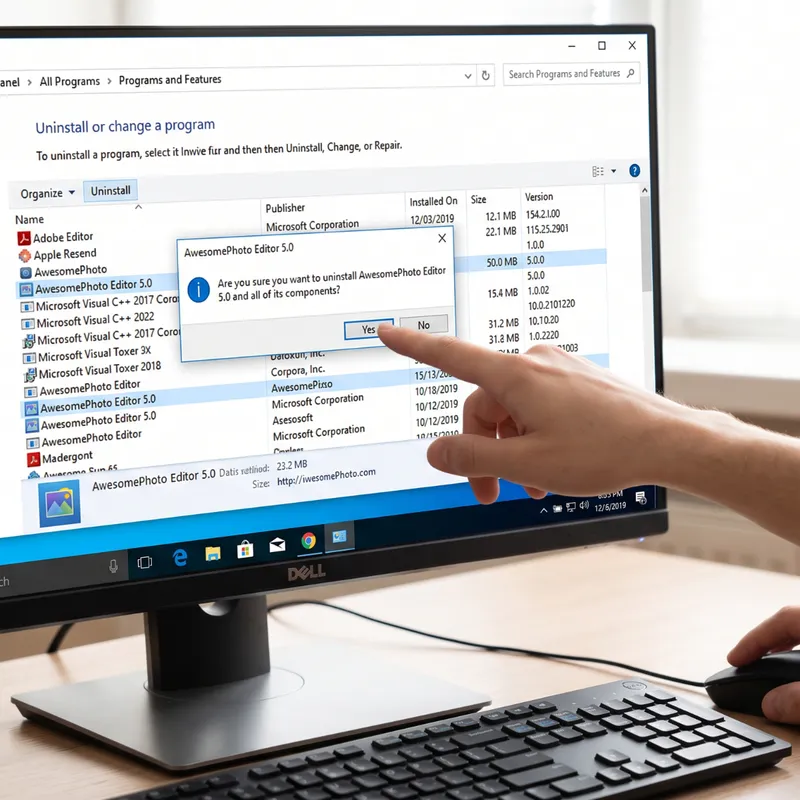
Even after you uninstall a program from your Windows computer, remnants of that software can linger, consuming valuable storage space and potentially impacting performance. This phenomenon isn’t a bug, but rather a consequence of how older Windows applications, known as legacy Win32 programs, handle the uninstallation process. Unlike modern applications, their removal relies heavily on custom scripts written by the software developers themselves, leading to incomplete cleanups.
When you initiate the uninstallation of a traditional Win32 application, Windows doesn’t directly manage the deletion of all associated files. Instead, it triggers an uninstaller utility that was bundled with the software by its creator. Consequently, the effectiveness of the cleanup is entirely dependent on the diligence and coding practices of the original developer. If the uninstaller script is poorly written or intentionally omits certain files, those components will remain on your system.
Understanding Leftover Files and Their Purpose
Several types of data are commonly left behind after an uninstallation:
- User Configuration Settings: These files store your personalized preferences, such as layout choices, language settings, and other customizations. Developers often leave these intact to provide a seamless experience if you decide to reinstall the software later. Your previous settings would be readily available, saving you the trouble of reconfiguring everything.
- Cache Files: Temporary files used by applications to speed up operations by storing frequently accessed data. While useful during active use, they can accumulate significantly over time.
- Application Data: This includes data stored in specific user profile folders like
%AppData%(Application Data) and%LocalAppData%. These folders can house anything from saved game progress to browser history and plugin data. - Windows Registry Keys: The Windows Registry is a critical database that stores low-level settings for the operating system and applications. Uninstallers may leave behind registry entries related to the program, which, while often harmless, contribute to the overall clutter.
Why Developers Leave Data Behind
There are several strategic reasons why software developers might design their uninstallers to leave certain files and registry entries untouched:
- Preserving User Settings: As mentioned, the primary reason is to allow users to retain their personalized settings. This enhances user experience and encourages re-engagement with the product.
- Preventing System Instability: Sometimes, uninstallers leave behind shared components, such as dynamic-link library (DLL) files. These DLLs might be used by other applications on your system. If an uninstaller were to remove a DLL that another program depends on, it could cause that other program to malfunction or crash. Developers prioritize system stability by erring on the side of caution and leaving these shared resources in place.
- Facilitating Future Updates or Reinstallation: Leaving configuration or data files can simplify the process of applying updates or reinstalling the software, as essential user-specific information is already present.
The Impact of Leftover Software Components
While leftover configuration files typically have a negligible impact on your system’s performance, other types of residual data can become problematic over time:
- Storage Consumption: Accumulated cache files and temporary data, especially from large, resource-intensive applications like modern video editing suites, graphic design software, or high-end games, can consume a substantial amount of space on your solid-state drive (SSD) or hard disk drive (HDD). This can lead to slower loading times and reduced overall system responsiveness.
- Resource Drain: More critically, some uninstalled programs can leave behind background services or scheduled update tasks. These hidden processes can automatically launch when your computer starts up, consuming valuable CPU cycles and RAM. Even if the main application is gone, these background agents continue to operate, unnecessarily burdening your system’s resources and potentially slowing down other active applications.
Modern Applications Offer Cleaner Uninstallation
Fortunately, the landscape of software installation and uninstallation is evolving. Newer application packaging technologies and distribution methods offer a more streamlined and complete removal process. Applications built using frameworks like MSIX, or those distributed exclusively through the Microsoft Store, benefit from a more integrated approach.
These modern applications often operate within isolated container environments. This architecture allows the operating system to meticulously track every file, registry entry, and resource associated with the application from the moment it’s installed. When you uninstall such an application, Windows has a comprehensive record and can perform a much cleaner and more thorough removal, ensuring fewer remnants are left behind.
Manually Cleaning Up Leftover Software
For users looking to reclaim disk space and ensure their system is free of unnecessary clutter from uninstalled legacy programs, manual cleanup is an option. Here are key areas to inspect:
- AppData Directory: Navigate to
%AppData%and%LocalAppData%in File Explorer. Look for folders named after the uninstalled software and carefully delete them if they contain only program-specific data. Be cautious not to delete folders belonging to currently installed applications. - Task Manager (Startup Tab): Press
Ctrl+Shift+Escto open Task Manager, then go to the ‘Startup’ tab. Disable any entries related to programs you have uninstalled. This prevents them from launching automatically when your computer boots. - Windows Services: Search for ‘Services’ in the Windows search bar and open the Services console. Review the list for any services associated with uninstalled programs. If found, you can stop and disable them. Again, exercise caution to avoid disabling essential system services.
- Disk Cleanup Utility: Windows includes a built-in Disk Cleanup tool that can identify and remove temporary files, system logs, and other unnecessary data, which may include some remnants of uninstalled software.
Ultimately, the complete erasure of a legacy Win32 program’s footprint from a Windows PC is not always guaranteed by the standard uninstallation process. The reliance on developer-provided uninstaller scripts means that residual data, and sometimes even active background processes, can persist. While modern application architectures are improving this situation, users may still need to perform manual checks to ensure their systems remain clean and efficient.
